
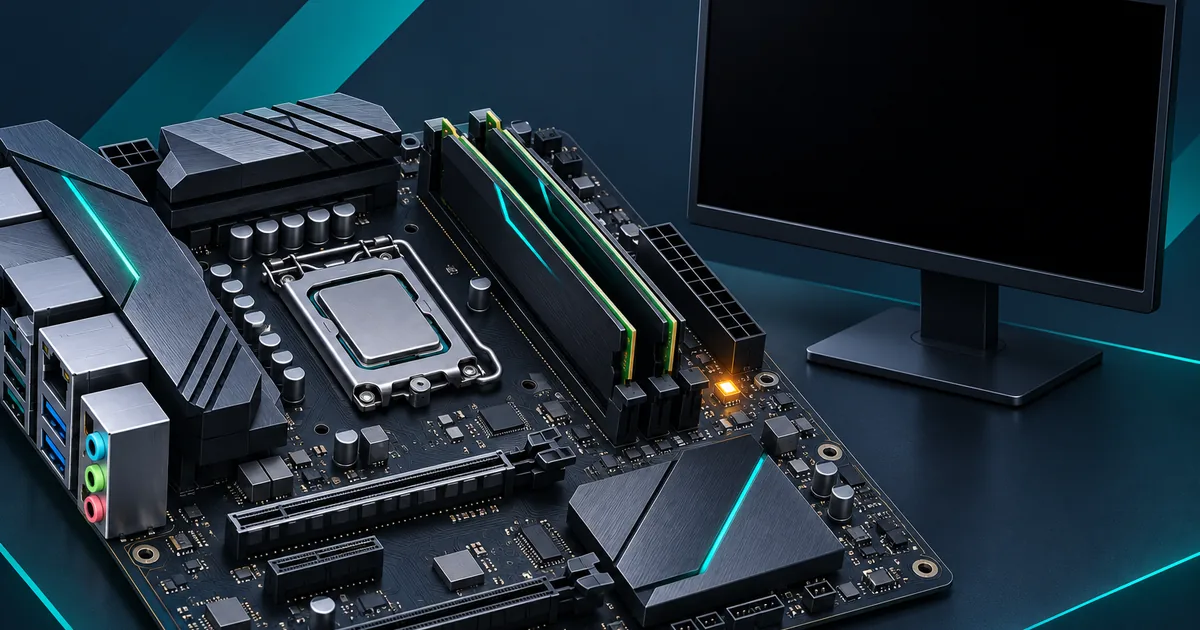
If your ASUS B650 shows a black screen after enabling EXPO, leave it on first: AM5 may be training the DDR5 memory.
If it never reaches the ASUS logo, clear CMOS, boot at default settings, update the BIOS for your exact board, then enable EXPO I again.
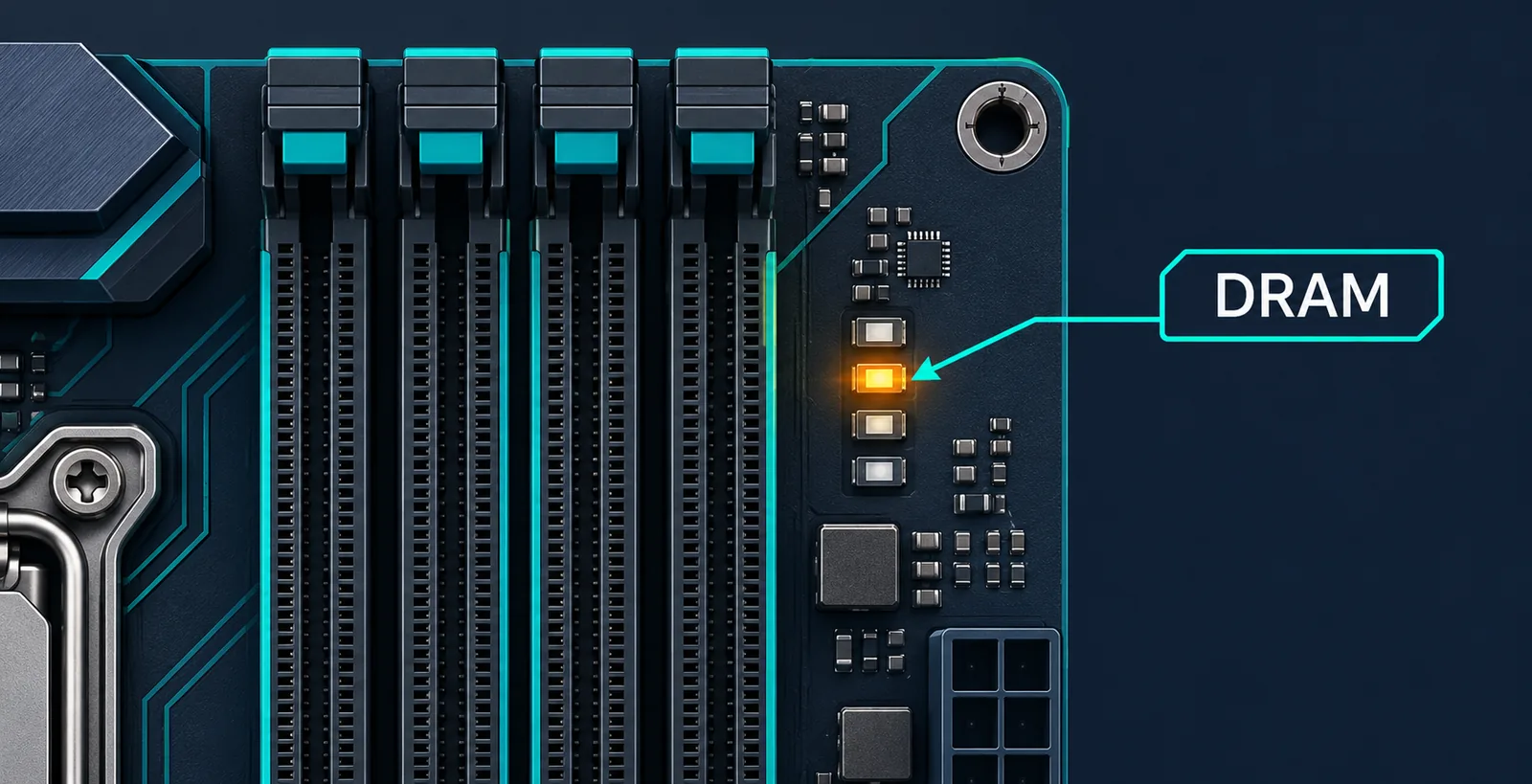
A DRAM Q-LED is typical; a VGA Q-LED also calls for a graphics-card check.
Steps
1. Wait for DDR5 memory training. The first boot after enabling EXPO or replacing RAM can take several minutes on AM5. The fans can run and the DRAM Q-LED can stay on while training is happening. Give it about 5 to 10 minutes before interrupting it. That is practical troubleshooting advice, not an official ASUS time limit. Once it starts, check memory speed in BIOS or in Windows under Task Manager > Performance > Memory.
2. Clear CMOS if there is still no image. This returns BIOS settings, including EXPO, to defaults and lets you verify whether the profile caused the failed boot.
Warning: shut down the PC and unplug its power cable before opening the case or touching CLR_CMOS pins or the battery. Clearing CMOS removes the BIOS date and time, BIOS password, and custom settings.
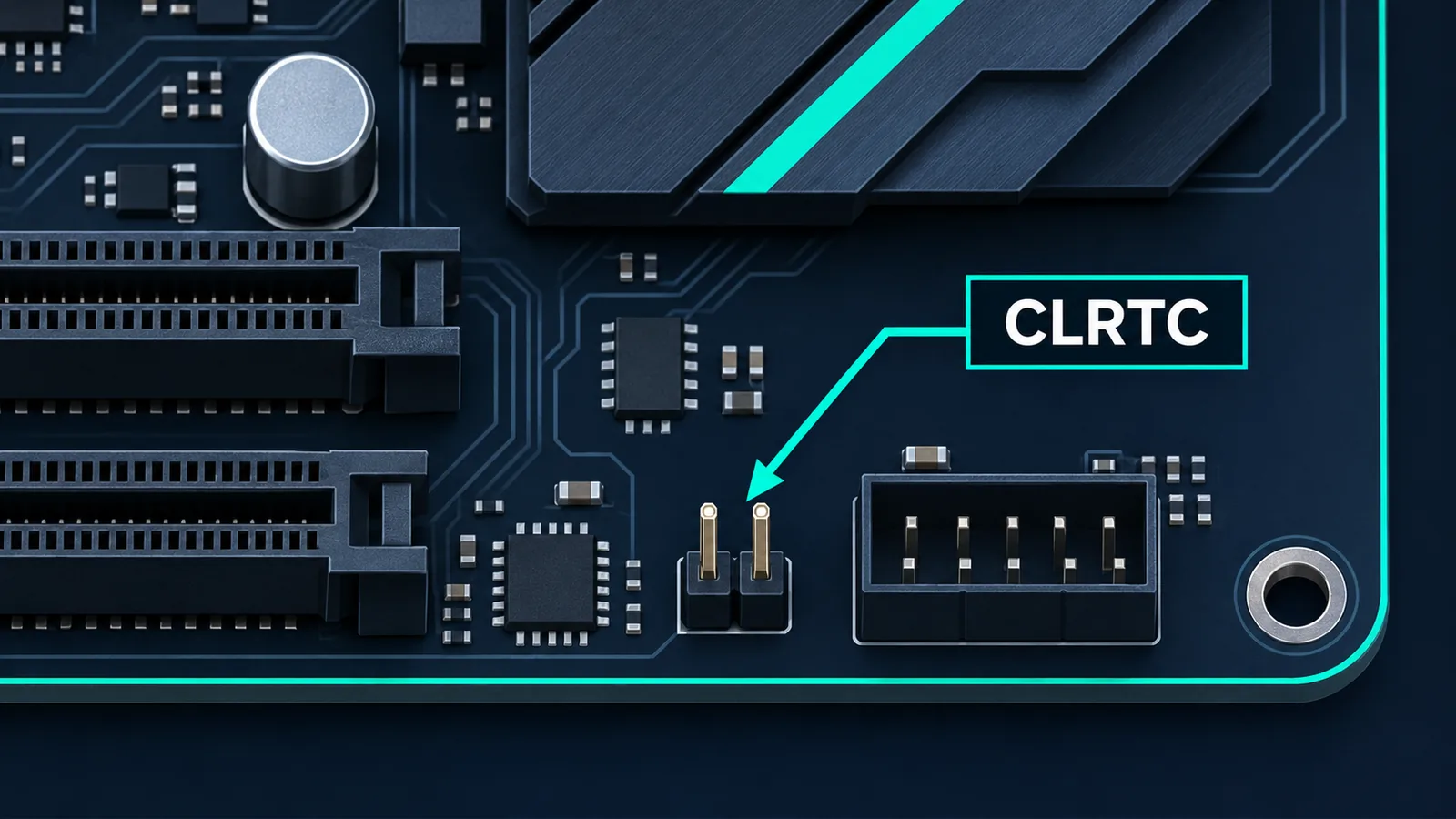
3. Use the reset method your motherboard actually has. ASUS documents three methods: hold a CLR_CMOS button for 5 to 10 seconds, bridge the two CLRTC pins with a metal object or jumper for 5 to 10 seconds, or remove the coin-cell battery. Not every board has every method, so consult its manual. After reconnecting power, enter setup with F1 when prompted, load optimized defaults with F5, and save with F10.
4. Confirm it boots with EXPO disabled. A normal boot at defaults shows that the system can POST. If it still cannot start after a CMOS reset, do not keep trying EXPO; check the alternatives below.
5. Update to the newest stable BIOS for the exact model. Open your board's ASUS support page, choose Driver & Utility, then BIOS. BIOS updates for the TUF GAMING B650-PLUS WIFI include DDR5 training and stability improvements, but versions differ among B650 models. Choose the newest non-beta release. Use EZ Flash in BIOS, or USB BIOS FlashBack only if your model supports it and its manual confirms the procedure.
Warning: never power off or unplug the PC during a BIOS update. Use only the file for your exact motherboard; some BIOS releases cannot be downgraded (on the TUF GAMING B650-PLUS WIFI, for example, version 3854 can't be rolled back).
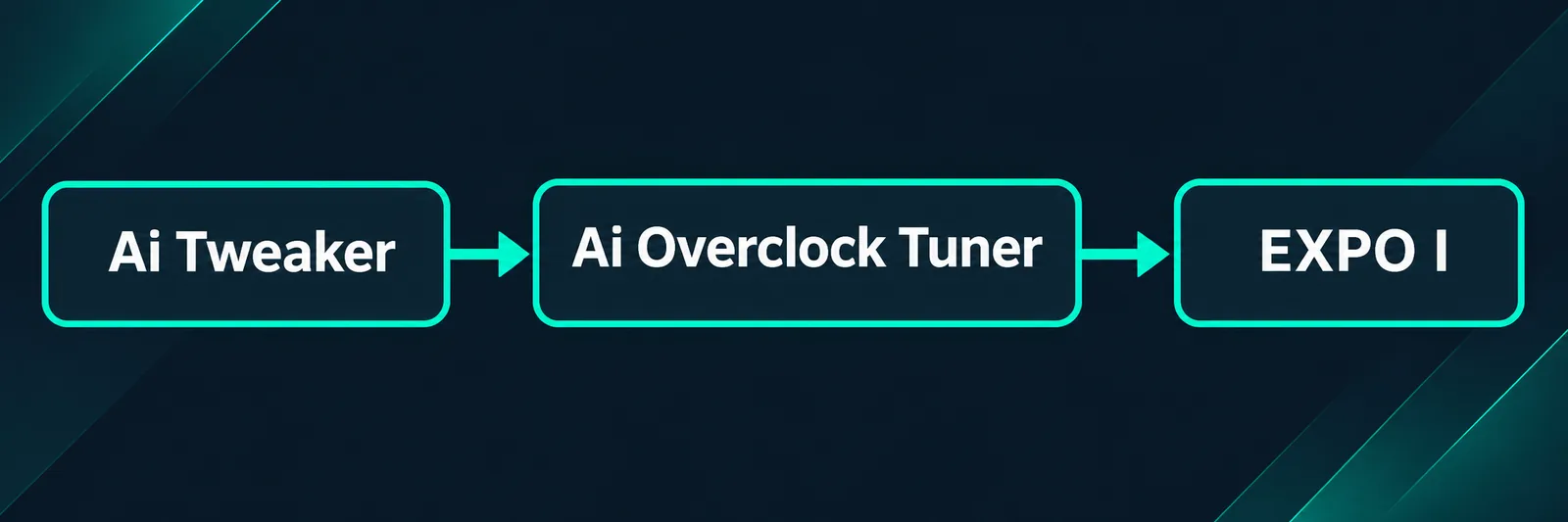
6. Turn on EXPO I again. Press Delete at startup, press F7 for Advanced Mode, open Ai Tweaker, set Ai Overclock Tuner to EXPO I, then press F10 and confirm. Wait again for memory training before treating the restart as a failure.
If it still doesn't work
Memory Context Restore can shorten later starts, but ASUS does not document one universal setup for these boards. Consider it only after EXPO is stable; disable it again if it produces blue screens.
If the board won't power on at all after a BIOS update, the recovery logic is similar to our Gigabyte X870 AORUS Q-Flash Plus recovery guide.
Frequently asked questions
Why does my PC not boot after enabling EXPO?
EXPO changes DDR5 settings and AM5 must train memory. If training never completes, the profile may be unstable with that BIOS, kit, module count, or board. Reset CMOS, confirm a default boot, update BIOS, and retry EXPO I.
How long does DDR5 memory training take on AM5?
Several minutes is normal after a memory change or EXPO activation. Wait roughly 5 to 10 minutes and avoid repeated power cycles during that first attempt.
Is it safe to clear CMOS?
Yes, when the PC is off and unplugged and you follow your model manual. It does not erase Windows files, but resets BIOS settings, date, time, and a BIOS password.
Do I need EXPO enabled for gaming?
No. Default memory settings work. EXPO may improve performance when stable, but reliable booting comes first. If you're still deciding how much memory you need, see 32 GB of RAM for gaming: necessary, or marketing?
Which BIOS should I install on my ASUS B650?
Install the newest non-beta BIOS on the official support page for your exact board, not a similarly named B650.
Still not working? We'll diagnose it in Thousand Oaks
Book a diagnosis with QuivalTech in Thousand Oaks or call (805) 750-3255. We can test RAM, motherboard, graphics card, and BIOS settings. We also build custom gaming PCs and carry parts in our shop.
Sources
Tested on 2026-11-04.